
Keeping your eye line near the lens
Every time you record a product walkthrough, film a short update, or run an important client call, you hit the same minor dilemma. Either you try to memorise every point under pressure, or you keep notes off to the side and your eyes visibly drift away from the camera while you talk.
Existing Mac teleprompters solve parts of that problem, though most ask for a recurring subscription, push your speech through a cloud API, or behave clumsily once you are also running Zoom, Loom, OBS, or a pair of AirPods. I wanted something free, native, and completely local on my Mac, and I was curious how far macOS 26’s built-in on-device speech stack could go compared with open local streaming models.
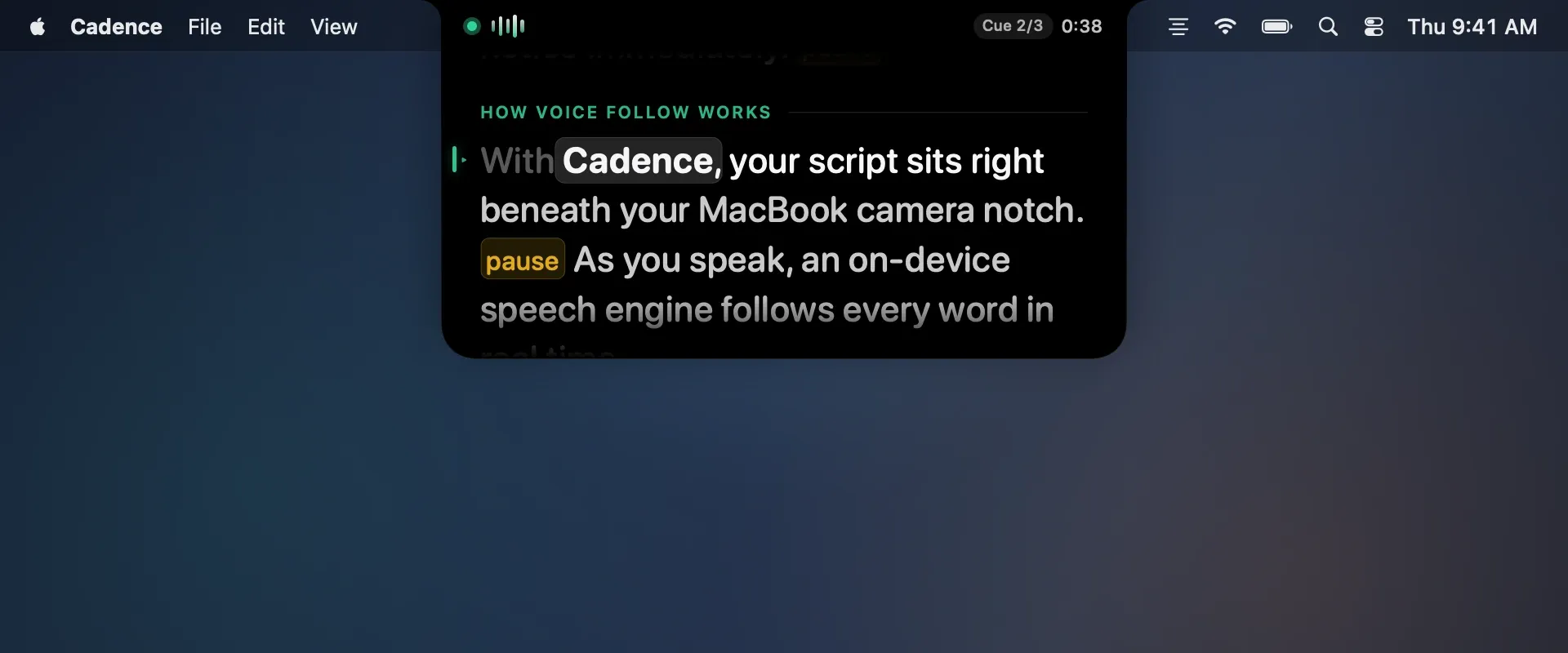
Cadence is the result. It is a native Swift 6 macOS app for Apple Silicon that attaches a pitch-black teleprompter directly to your MacBook camera notch, listens locally on your machine, and scrolls your script at your real speaking pace. Speed up when you have momentum, slow down to land a point, or stop to breathe and improvise; the text waits calmly until you rejoin it.
Cadence 1.0.0: core release specs
- 0 MB
- Ready out of the boxRuns on Apple's built-in on-device SpeechAnalyzer with no initial model download.
- ~100 ms
- Streaming floorDown to roughly 100 ms word-by-word latency with optional Moonshine v2 Tiny.
- 120 Hz
- Critically damped scrollSmoothly matches your pace and holds still whenever you pause or ad-lib.
- 0
- Bytes sent to the cloudNo accounts, no telemetry, and passive read-only microphone capture.
Living inside the MacBook notch
The placement is the main trick. Because the camera lens sits right inside the MacBook notch, putting the active reading line immediately below that bezel keeps your gaze natural on video. The notch Live Activity interaction was directly inspired by Moody Teleprompter, adapted around local speech tracking and a native script library.
To make the window feel attached to the hardware rather than pasted over the menu bar, the overlay uses a non-activating floating NSPanel matched to pure black (#000000) with concave top shoulders that melt into the physical notch bezel. Your active reading anchor sits at 28% from the top of the viewport, with spoken text dimmed to 38%, the active line at full contrast, and upcoming lines at 80% so your eye does not hunt for its place.
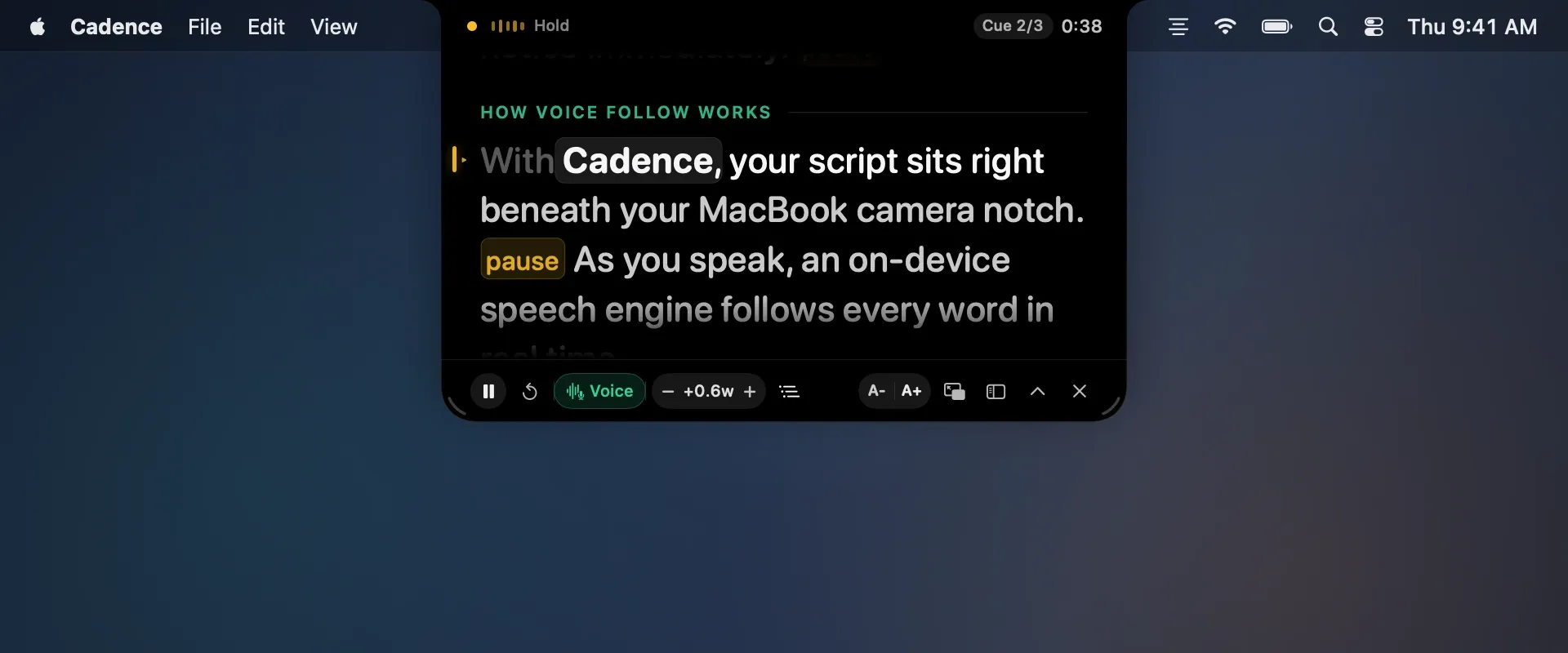
Anti-flicker hover dockMoving the cursor into the notch holds scrolling automatically and reveals the dock: switch between Voice Follow and Classic Auto-Scroll, nudge word lead (+0.6w), resize text, jump section cues, or detach into a floating window on an external display.
Motion matters more than I expected in a teleprompter. Bouncy springs feel playful in a launcher, yet distracting when you are reading out loud on camera. Cadence uses non-bouncy, critically damped transitions across its six notch states: a 3-second countdown ring that pre-warms the microphone, active voice tracking, hover hold, manual pause, a compact tucked pill when you want the text out of the way, and full dismissal.
On an external monitor without a notch, or whenever you want to drag the script closer to an external webcam, one click detaches the prompter into a translucent floating window with symmetrical bottom-corner drag-to-resize.
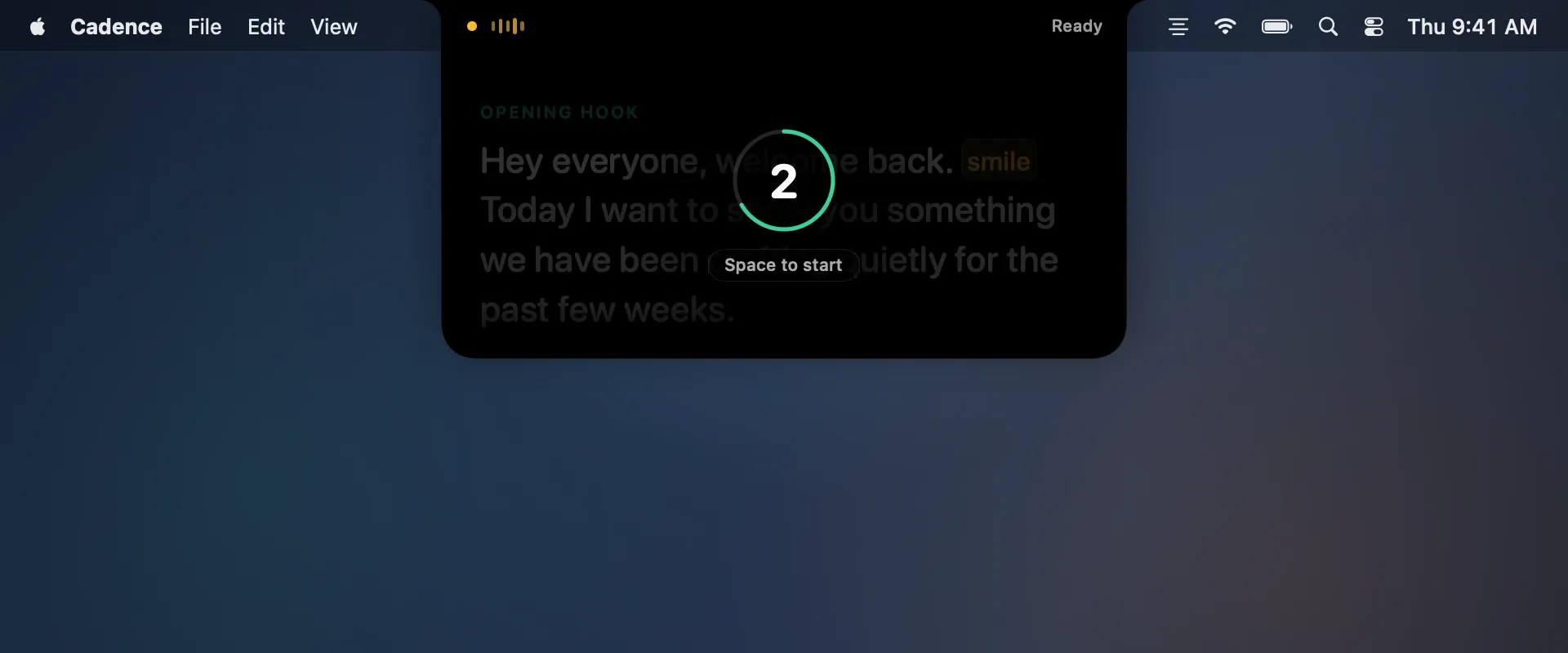
Pre-warmed 3-second countdownLaunching a script starts a short countdown that warms the audio tap and speech engine before word one, with Space ready to begin immediately.
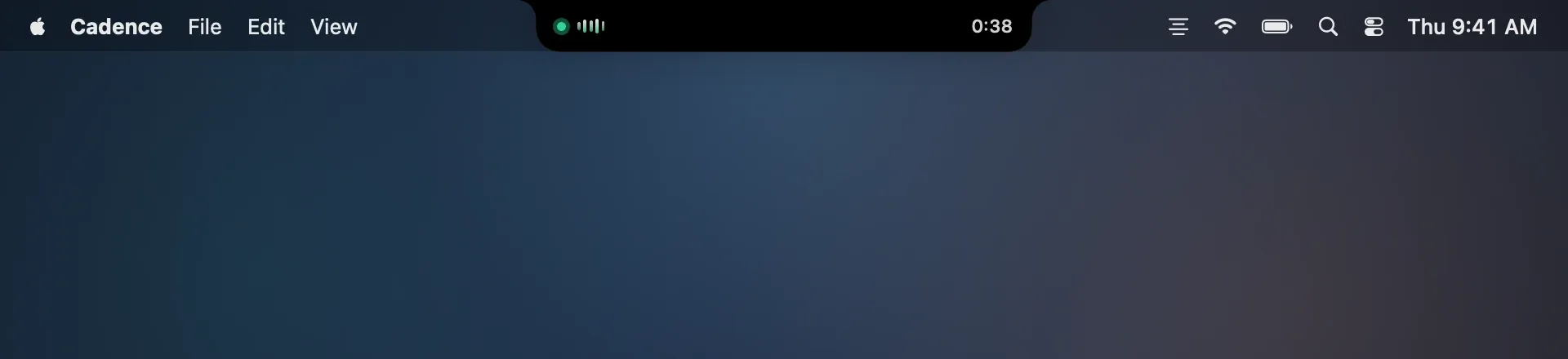
Compact tucked notch pillPress M to fold the prompter into a quiet notch pill that keeps the live volume beam and remaining time visible while freeing the rest of your screen.
A script library that behaves like Apple Notes
Most teleprompters treat writing as an afterthought: you draft in Notion or Notes, copy-paste into a bare text box, and immediately lose your edits the next time you tweak a line during rehearsal. I wanted the editor to be somewhere you can actually keep your talks, walkthroughs, and call outlines.
The main workspace borrows Apple Notes’ restraint: a three-column native macOS layout with folders, pinned scripts, instant search, live word count and reading-time estimates, and a clean writing canvas. It supports lightweight Markdown cue syntax directly in the editor: # Section headings create jumpable cue markers in the notch header, [pause], [smile], and [breathe] render as amber stage-cue pills that the voice aligner skips automatically, and **bold** emphasises key phrases.
Every script stays in plain UTF-8 Markdown mirrors on disk alongside the local library index, and you can import existing .txt, .md, or .rtf files straight into a folder.
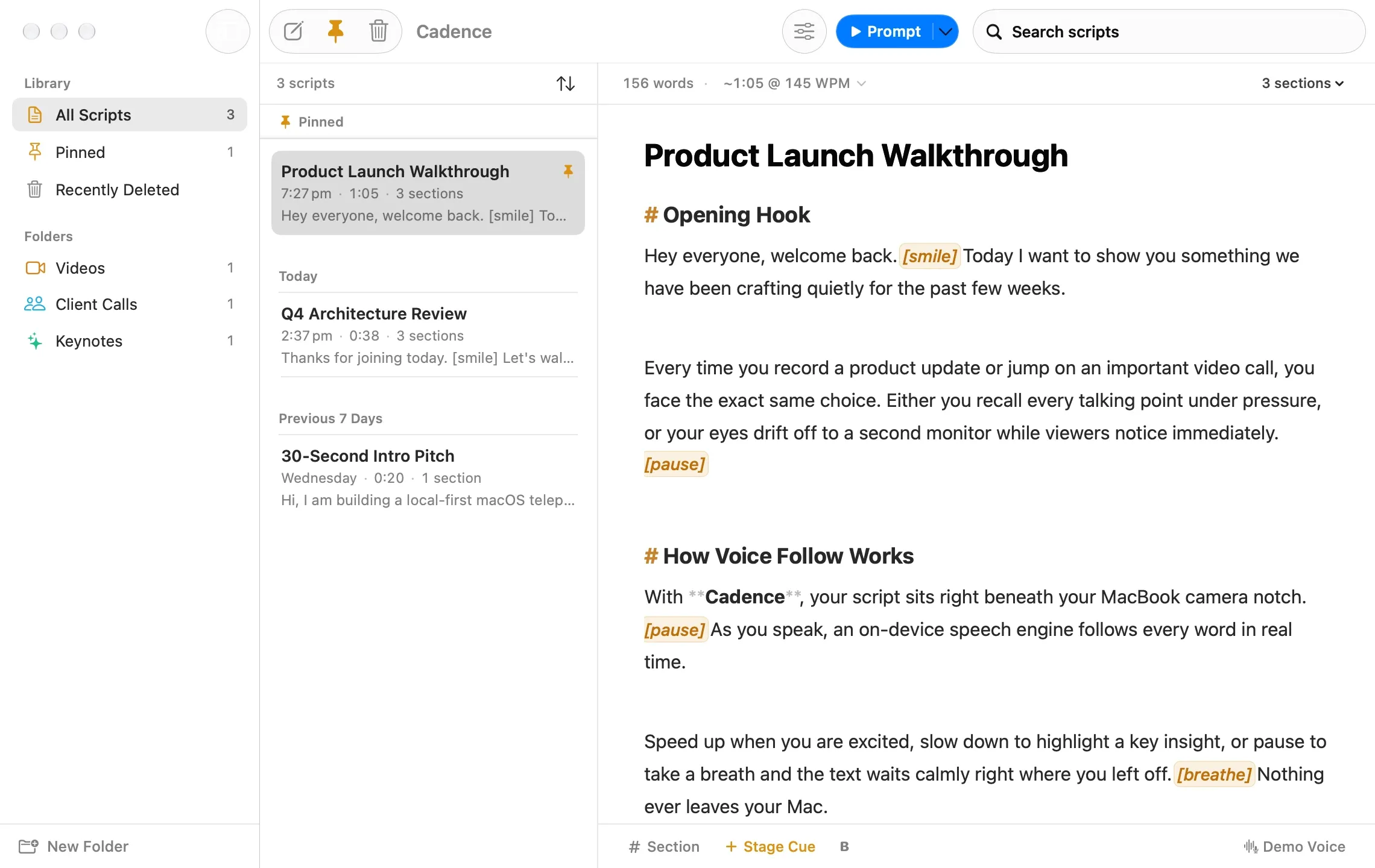
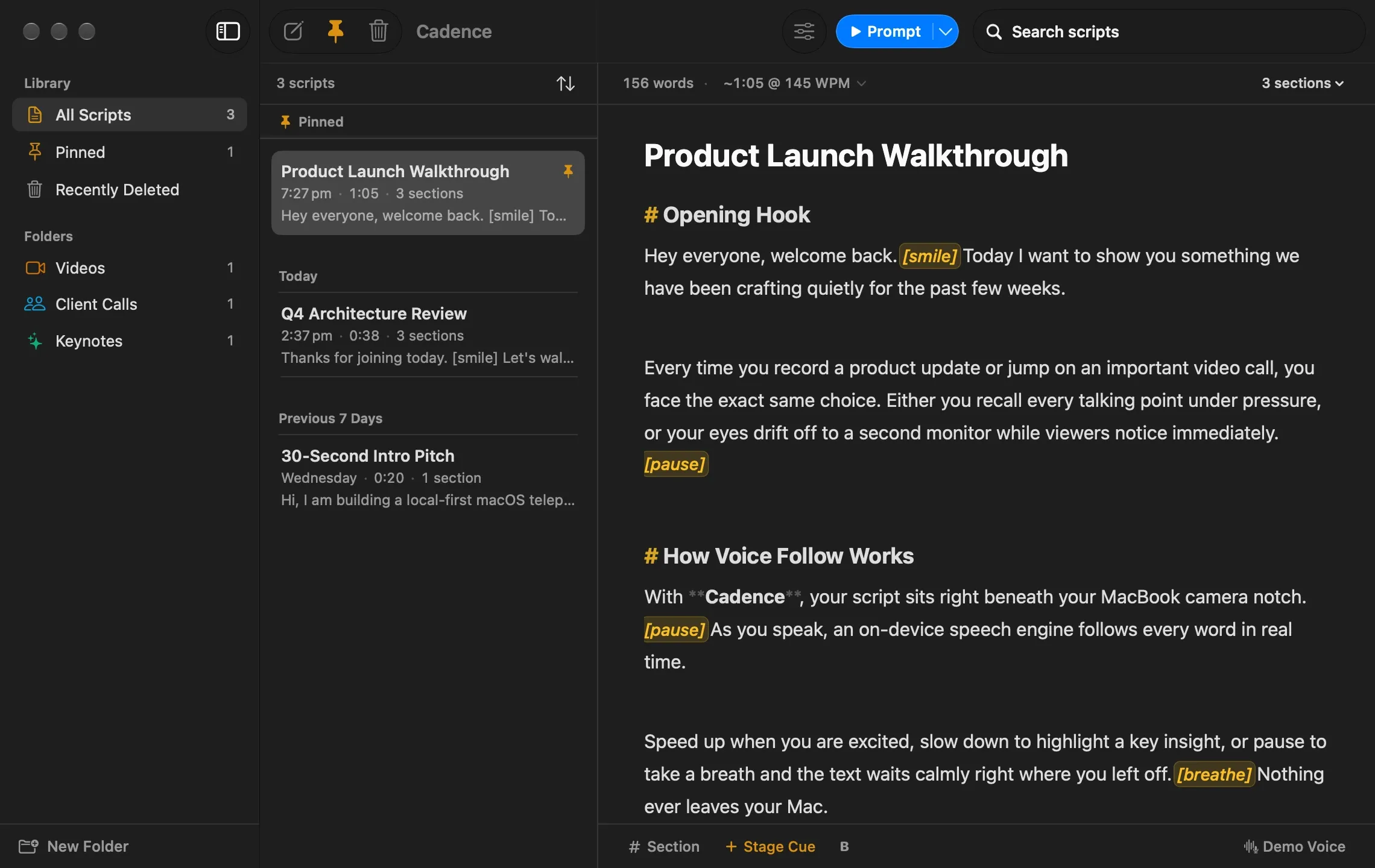
Folders, pinned scripts, live reading-time estimates, section jump menu, and amber stage-cue pills in native macOS light and dark appearances. Toggle this site's theme to preview both.
Drafting and revising scripts from your AI tools via local MCP
A lot of the scripts I want to read on camera start inside another tool: a product walkthrough drafted while looking at a codebase in Cursor, Claude Code, Google Antigravity, or Gemini CLI, or a tight two-minute update shaped in Claude Desktop or ChatGPT. Copying drafts back and forth every time you shorten an intro or add a [pause] cue gets old quickly.
Cadence exposes your local script library through the Model Context Protocol (CadenceMCP) using two strictly local transports: a bundled native Swift cadence-mcp stdio helper (symlinked to ~/.local/bin/cadence-mcp so paths stay stable and edits still work when Cadence is closed) plus an in-app localhost Streamable HTTP server at http://127.0.0.1:48621/mcp bound strictly to loopback with Origin validation. Nothing leaves your machine unless you send it to whatever AI client you are already using.
The server exposes 17 tools covering folder and script management, surgical updates through edit_script (find-and-replace, append, or single-section rewrites), analyze_script for word-count, pacing, and cue metrics, and open_script to highlight a script in the workspace. It also exposes your library as MCP Resources and includes Cadence-native authoring Prompts that already understand # Section headings and amber [stage cue] pills.
Because letting an external tool edit your speaking notes needs real guardrails, Cadence builds safety into the storage boundary itself:
- Atomic file locking and live reload:
Cadence.appandcadence-mcpcoordinate reads and writes through POSIXflocklocks (ScriptLibraryRepository) and cross-process notifications, reloading edits straight into the open editor while freezing any active teleprompter session mid-read so your text never jumps while you are speaking. - No sudden overlays or permanent deletes:
open_scriptonly selects a script in the workspace and never triggers the notch overlay, and delete calls only move scripts to Recently Deleted. - 20-revision undo safety: Every AI mutation saves a pre-edit snapshot (keeping the last 20 revisions locally) alongside a recent AI activity strip with one-click Revert.
Setup lives inside a dedicated AI & MCP tab in Settings (⌘,), a Connect AI sheet in the workspace toolbar with a subtle live connection indicator, and a quiet dismissible prompt in the sidebar footer until you connect your first client. Rather than making you hand-edit JSON files by default, Cadence uses native deeplinks for Cursor and VS Code, safe backed-up one-click installs for Claude Desktop (plus .mcpb export), Claude Code, Gemini CLI, Google Antigravity, and OpenAI Codex, and copyable JSON/URL cards for ChatGPT Desktop and custom clients, backed by a three-layer check (config status, local server self-test, and real client handshake tracking with a Copy Test Prompt button).
Local MCP server (CadenceMCP)
100% local · stdio + loopback HTTP · zero cloud relay~/.local/bin/cadence-mcpNative Swift executable bundled inside Cadence.app and symlinked to a stable path, sharing the library through POSIX file locks.
http://127.0.0.1:48621/mcpStrict 127.0.0.1 loopback binding with Origin validation for desktop and HTTP-native MCP clients.
Full script & folder control
Create, read, search, organise, and make surgical edits (edit_script replace, append, or section updates), run analyze_script for pacing and cue metrics, or call open_script to select a script in the workspace without ever triggering the notch overlay.
Built not to wreck an active take
Atomic flock-coordinated writes reload live into the open editor, while any active teleprompter session freezes safely mid-read. Deletions move scripts to Recently Deleted only.
Pre-AI snapshots with 1-click Revert
Every AI mutation captures the prior document first (keeping the last 20 snapshots locally) alongside a recent AI activity strip so you can undo any edit in one click.
Three-layer connection checks
Configure and verify from Settings (⌘,) → AI & MCP, the workspace toolbar Connect AI sheet, or a dismissible sidebar prompt, tracking config status, live server self-tests, and real client handshakes.
One-click client setup
Connect from Settings (⌘,) → AI & MCP or the workspace toolbar- Native deeplink
- CursorVS CodeOpens the client's built-in MCP install prompt directly via cursor:// and vscode:mcp/install.
- 1-click backed-up config
- Claude Desktop (.mcpb)Claude CodeGemini CLIGoogle AntigravityOpenAI CodexSafely installs or removes Cadence with an automatic config backup first.
- Copy JSON / URL
- ChatGPT DesktopCustom MCP clientsGuided snippet cards plus a Copy Test Prompt button to verify the live handshake.
On-device voice following without the cloud or audio drama
Voice-followed teleprompting fails in two very specific ways in practice. First, speech recognition lags behind or trips over proper nouns, causing the text to stutter or freeze mid-sentence. Second, poorly behaved audio capture grabs exclusive control of the microphone or flips Bluetooth headphones into low-bandwidth hands-free mode right in the middle of a call.
Cadence separates those responsibilities cleanly across Swift 6 modules: CadenceCore handles script storage, parsing, phonetic alignment, and scroll physics; CadenceSpeech handles passive audio capture and pluggable speech engines; CadenceMCP handles local stdio and loopback HTTP tool calls; and CadenceApp owns the SwiftUI and AppKit UI.
On the audio side, AudioCaptureService attaches a passive, read-only AVAudioEngine input tap (also feeding the 5-band Goertzel volume beam in the notch). It does not hijack AirPods routing or interrupt Zoom, Loom, OBS, or Screen Studio.
On the tracking side, partial transcripts feed a three-tier bounded dynamic-programming aligner paired with Double Metaphone phonetic matching and fuzzy fallback. That lets Cadence stay locked onto your place even when a local model mishears an acronym or you drop a connecting word. The aligner outputs a target position into a critically damped 120 Hz scroll controller, while voice-activity detection holds the scroll steady the moment you stop talking. If you prefer steady pacing instead, press V anytime to switch to Classic Auto-Scroll between 75 and 240 WPM.
Part of why I built Cadence was wanting to compare today’s local macOS speech engines under identical conditions rather than guessing from model cards. Out of the box, Cadence uses Apple’s built-in SpeechAnalyzer on the Neural Engine with zero download. Inside Settings, you can also download Moonshine v2 Tiny, Moonshine v2 Small (via Moonshine Voice), or NVIDIA Parakeet Realtime EOU (via FluidAudio) with one click and A/B test latency and accuracy on your own scripts, offline.
On-device speech engines (100% offline)
Switch engines anytime in Settings → Voice & Speech| Engine | Download | Latency | Hardware | Strengths |
|---|---|---|---|---|
| Apple On-Device SpeechDefault | 0 MB (built-in) | ~125–200 ms | Apple Neural Engine | Ready straight away via macOS SpeechAnalyzer with zero setup. |
| Apple On-Device (Script Bias) | 0 MB (built-in) | ~150–220 ms | Apple Neural Engine | Biases recognition towards names, acronyms, and terms already in your script. |
| Moonshine v2 Tiny (34M) | ~35 MB | ~100 ms | CPU Streaming | Fastest word-by-word feel; supports live script keyterm biasing. |
| Moonshine v2 Small (123M) | ~100 MB | ~125 ms | CPU Streaming | Stronger accuracy on technical vocabulary and proper nouns, with script biasing. |
| Parakeet Realtime EOU (120M) | ~200 MB | ~160 ms | CoreML Neural Engine | NVIDIA streaming transducer via FluidAudio; keeps CPU usage very low. |
| Live Rehearsal Simulator | 0 MB (built-in) | Instant | Local timer | Variable-speed simulated voice for rehearsing layout and pacing without a mic. |
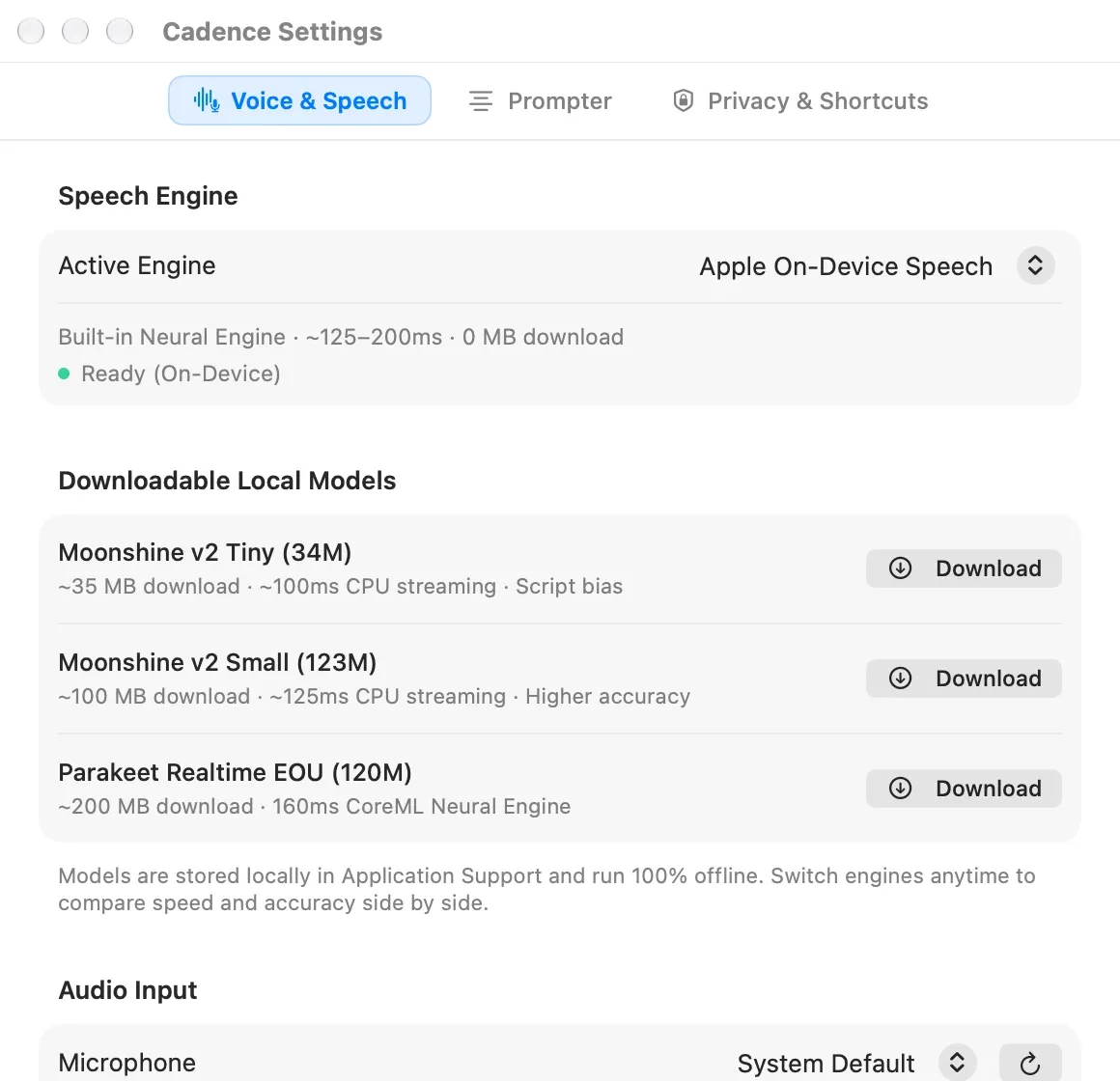
Voice & SpeechSwitch between Apple's built-in Neural Engine analyser, downloadable Moonshine v2 models with live script keyterm biasing, and Parakeet Realtime EOU without touching Terminal.
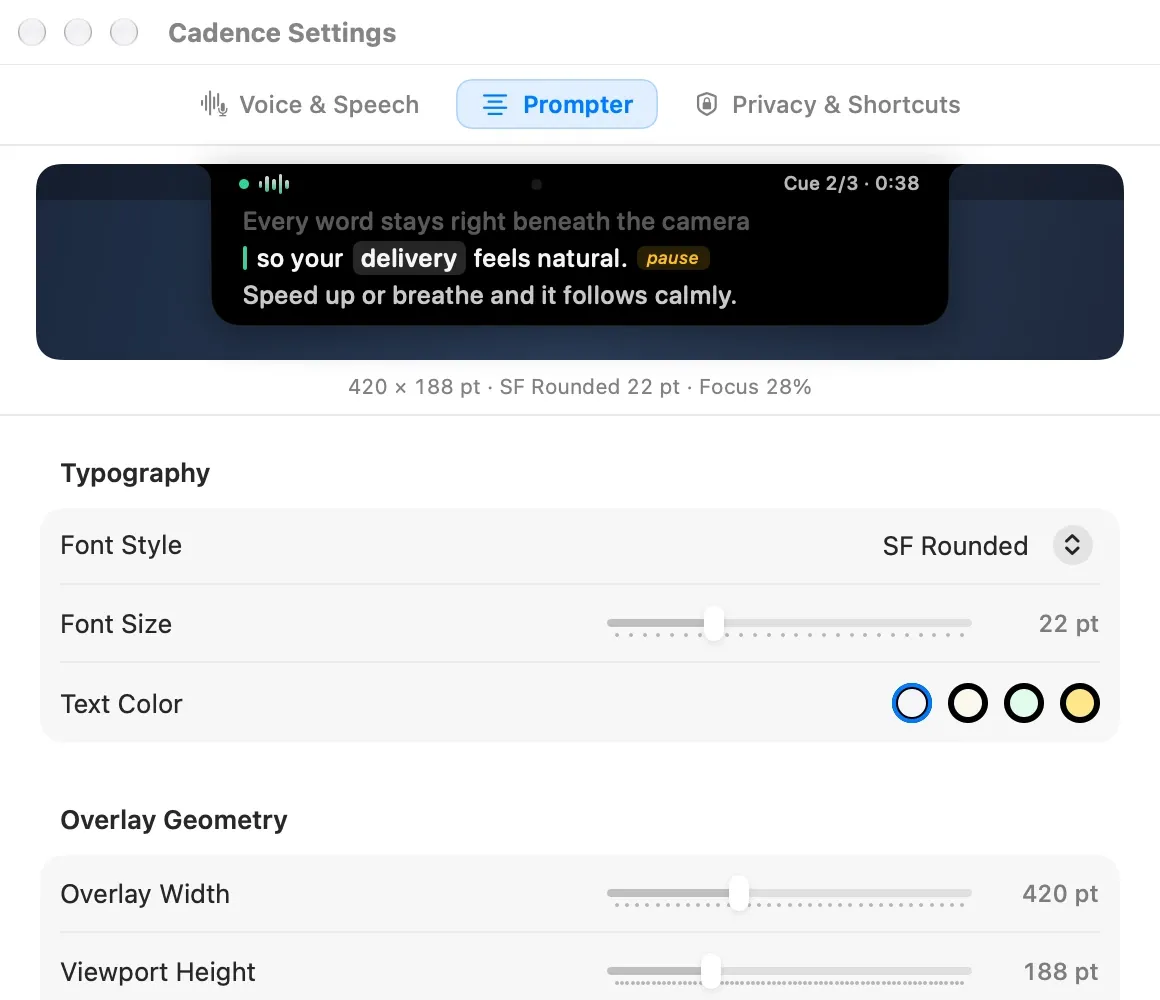
Prompter geometry & typographyAdjust font family, text size, tint, notch width, viewport height, and focus anchor with a live miniature notch preview.
Installing Cadence 1.0.0 on your Mac
Cadence is free and ready to run on any Apple Silicon Mac (arm64) running macOS 26.0 (Tahoe) or later. Because version 1.0.0 is ad-hoc signed rather than notarised with a paid Apple Developer ID certificate, macOS Gatekeeper will quarantine the browser-downloaded .dmg until you clear the quarantine attribute once. The full four-step setup and SHA-256 verification checksum are below.
Install Cadence 1.0.0 on macOS
Apple Silicon (arm64) · macOS 26.0 (Tahoe) or laterDownload the disk image
Grab Cadence-1.0.0-arm64.dmg (18.6 MB). It is a single self-contained native app bundle with no installer wizard or background updater.
Drag Cadence into Applications
Double-click the
.dmg, drag Cadence onto the Applications folder shortcut, and eject the disk image.Clear the macOS download quarantine flag (first launch only)
Version 1.0.0 is ad-hoc signed rather than notarised with a paid Apple Developer ID certificate. Because macOS attaches a
com.apple.quarantineflag to any.dmgdownloaded in a browser, Gatekeeper will otherwise say “Cadence is damaged and can’t be opened” or “Apple could not verify Cadence”. Run this once in Terminal, then open Cadence normally:xattr -cr /Applications/Cadence.appAllow Microphone access and pick an engine
On first launch, allow Microphone access (plus Speech Recognition if using Apple's built-in engine). To compare Moonshine v2 or NVIDIA Parakeet Realtime EOU, open Settings (⌘,) → Voice & Speech and download any model with one click.
Formatting, shortcuts, and day-to-day control
Once a script is open, you should rarely need to touch the mouse while recording. Global shortcuts let you summon the prompter, pause, or jump between # Section cues while another application (such as Keynote, Figma, or your browser) keeps focus.
Script syntax and keyboard shortcuts
Markdown cues in the editor, global controls while recording# Section TitleHOW VOICE FOLLOW WORKSCreates a jumpable cue marker in the notch header (for example Cue 2/3) so you can hop between sections mid-take.
[pause] [smile] [breathe]pauseRenders as an amber stage-cue pill in both the editor and the notch, and is skipped by the voice aligner so it never stalls tracking.
**emphasised phrase**CadenceHighlights key words visually inside the prompter so vocal stress lands where you planned it.
.txt · .md · .rtfUTF-8 Markdown mirrorImport existing scripts directly into your library. Every script mirrors automatically to plain UTF-8 Markdown on disk.
Workspace
Editing and organising scripts- ⌘↩
- Launch prompter from top
- ⇧⌘↩
- Launch prompter from cursor
- ⌘N
- New script
- ⇧⌘N
- New folder
- ⇧⌘P
- Pin or unpin script
- ⌘⌫
- Move script to Recently Deleted
- ⇧⌘M
- Insert # Section heading
- ⇧⌘D
- Insert [pause] stage cue
- ⌘,
- Open Settings
Prompter & global controls
Active while prompting or across macOS- Space
- Play, pause, or skip countdown
- V
- Toggle Voice Follow and Auto-Scroll
- R
- Restart script from top
- M
- Collapse to or expand from tucked notch pill
- Esc
- Dismiss prompter overlay
- ⌥Space
- Global show or hide prompter
- ⌥⇧P
- Global play or pause
- ⌥⇧↑↓
- Global previous or next section cue
Release notes, privacy, and what still has sharp edges
Shipping version 1.0.0 today means being clear about the current boundaries alongside what already works well.
Three trade-offs are worth knowing upfront. First, Cadence targets Apple Silicon and macOS 26.0+ because it leans directly on Apple’s modern on-device SpeechAnalyzer APIs and Swift 6 concurrency; Intel Macs and older macOS releases are not supported. Second, ad-hoc signing keeps this initial release free of Apple Developer Program overhead, at the cost of that one-line xattr step on first launch. If enough people use Cadence regularly, moving to a notarised Developer ID build is already wired into the release pipeline. Third, hiding an overlay from every screen recorder on modern macOS is less absolute than it used to be, so I have documented the ScreenCaptureKit caveat plainly below.
Release notes and local storage
Current build: v1.0.0 (27 November 2026)First public Apple Silicon release for macOS 26 (Tahoe) and later.
- MacBook notch Live Activity prompterNon-activating floating panel fused to the camera notch with spring transitions, tucked pill mode, 3-second countdown ring, live 5-band audio beam, symmetrical bottom-corner resize, hover controls dock, and a detached floating window for external displays.
- Apple Notes-inspired 3-column script workspaceFolders, pinned scripts, instant search, distraction-free editor with # Section cue headings, amber [stage cue] pills, live word-count and duration estimates, .txt/.md/.rtf import, and plain UTF-8 Markdown mirrors on disk.
- Real-time on-device voice followingThree-tier phonetic and bounded dynamic-programming aligner (Double Metaphone plus fuzzy matching) driving critically damped 120 Hz scroll physics, alongside Classic Auto-Scroll (75–240 WPM).
- Five local speech engines plus rehearsal simulatorBuilt-in Apple SpeechAnalyzer (standard and script-biased), in-app one-click downloads for Moonshine v2 Tiny (34M), Moonshine v2 Small (123M), and NVIDIA Parakeet Realtime EOU (120M) via FluidAudio, plus a mic-free Live Rehearsal Simulator.
- Screen-share privacy and passive audio tapDefault NSWindow.sharingType = .none exclusion for screenshots and legacy capture, paired with a passive read-only AVAudioEngine mic tap that leaves Zoom, Loom, Screen Studio, OBS, and AirPods routing untouched.
Where your files live on disk
Everything stays local to your Mac- Library & settings
~/Library/Application Support/Cadence/library.jsonFolders, pinned flags, preferences, and metadata.- Plain Markdown mirrors
~/Library/Application Support/Cadence/Scripts/*.mdHuman-readable UTF-8 copies of every script you write.- Optional speech models
~/Library/Application Support/Cadence/Models/Downloaded Moonshine v2 and Parakeet weights, kept offline.
Screen-share and ScreenCaptureKit note
Hide from Screen Shares & Recordings is on by default (NSWindow.sharingType = .none), which keeps the notch overlay out of macOS screenshots and legacy capture APIs. On macOS 15+, Apple treats that flag as a legacy hint for modern ScreenCaptureKit full-display recorders such as Loom, Screen Studio, OBS, and Zoom. Run a quick 5-second test recording before an important take; if full-screen capture still shows the overlay, record a single window, crop the region, or exclude Cadence in your recorder's app list.
Building Cadence in a day reinforced something I keep seeing with modern local models and native platform APIs: the distance between “this ought to exist as a focused, offline utility” and a working macOS binary has shrunk dramatically. The interesting work now is not wiring up a cloud API; it is sweat-the-details craft around latency, non-intrusive audio routing, eye-line geometry, and calm motion. If you try Cadence on your Mac and find a script style, microphone setup, or speech engine where it stumbles, I would genuinely like to hear about it.